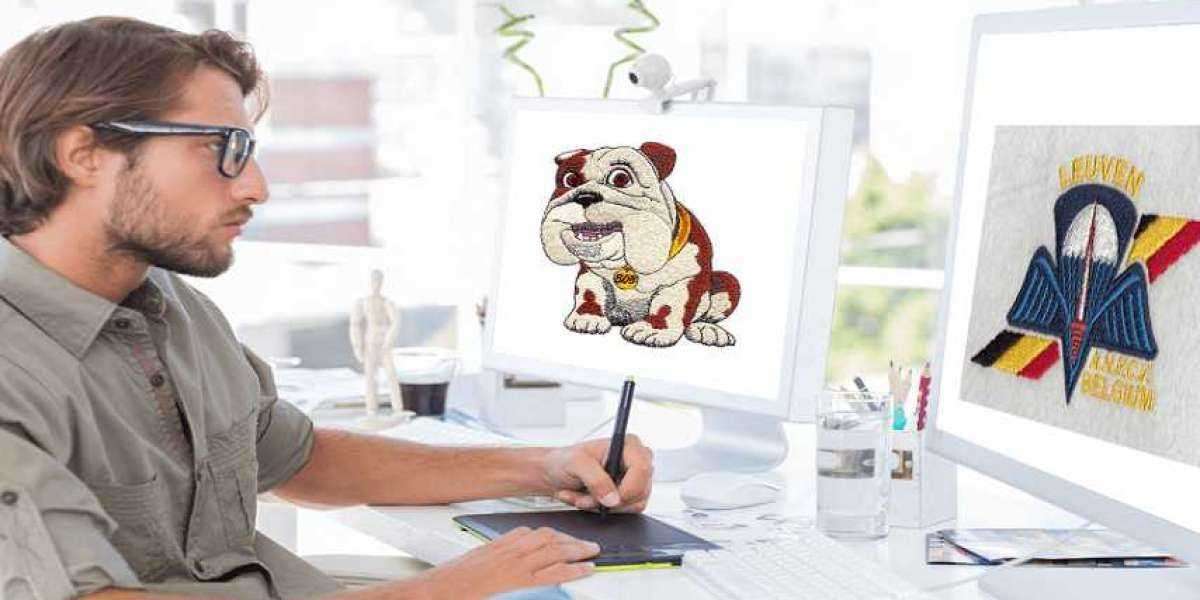

You have a logo that needs to become a stitch file. Maybe it is your business logo for staff uniforms. Maybe a friend asked you to embroider their new company emblem on hats. Whatever the reason, you need that design to run on your Husqvarna Viking machine. But here is the thing. Husqvarna Viking machines speak their own language. They use formats like HUS, VP3, SHV, and VIP . If you try to feed them a JPG or even a PES file from another brand, they will either reject it or stitch it wrong. You need to learn how to convert logo to Husqvarna Viking file formats correctly.
The good news is that you have plenty of options. Some tools cost nothing. Others give you professional control. A few let you hand off the work entirely. Let us walk through the best tools available and help you choose the right one for your situation.
Understanding Husqvarna Viking File Formats
Before we jump into tools, you need to know what you are actually creating. Husqvarna Viking machines use several formats depending on the model and age .
Older machines and some basic models use HUS files . This is the original native format for Husqvarna. Many machines from the 1990s and early 2000s read HUS directly.
Newer machines, especially after Husqvarna merged with Pfaff, use VP3 and VIP formats . These files store more information, including full thread color data . If you own a modern Designer series machine, VP3 is your friend.
Some models also read SHV files . This format works with specific Viking Designer machines.
The PREMIER+ software lists all compatible formats: HUS, SHV, DHV, VP3, VIP, and more . Check your machine manual to confirm which formats it accepts. When in doubt, VP3 is a safe bet for modern machines, while HUS works for older ones.
Tool 1: Husqvarna Viking Official Software
If you want the tool designed specifically for your machine, look at the 5D software family or PREMIER+ .
The 5D Embroidery system includes tools like ExpressDesign Wizard, which automatically converts clip art into embroidery . You import your logo, and the software analyzes it, assigns stitch types, and creates a stitch file. The 5D Cross Stitcher even turns images into cross-stitch patterns .
PREMIER+ 2 is the newer software platform . It opens multiple formats including HUS, SHV, VP3, and VIP . You can edit designs, combine elements, and export in the right format for your machine.
The advantage of using official software is guaranteed compatibility. If the software says it exports VP3, your Viking machine reads that VP3 perfectly. The downside is cost. These programs are professional-grade investments.
Tool 2: Ink/Stitch with Inkscape
For budget-conscious users, Ink/Stitch delivers incredible power at zero cost . This free plugin works inside Inkscape, which is also free. Together, they create a complete digitizing and conversion studio.
A real user on the Inkscape forum confirms this workflow. She uses Inkscape to convert images into VP3 files for her Husqvarna Viking Designer Jade 35 machine . She cleans up the image, inserts colors, runs the simulator, and saves as VP3. Another user with a Husqvarna Topaz 50 sends VP3 files directly from Ink/Stitch to the machine without any intermediate software .
This proves that Ink/Stitch works for real Viking owners. The software supports VP3 export, which is exactly what many modern Viking machines need. It also handles HUS and other formats.
The learning curve is real. Inkscape takes time to master. But the forum evidence shows that regular users succeed with this combination every day.
Tool 3: Dedicated Conversion Software
Several third-party programs specialize in converting embroidery files between formats.
BERNINA ARTlink 9 offers free conversion support for HUS files . Despite the Bernina name, it works with multiple formats and provides basic editing features. Perfect for simple conversions when you already have a stitch file in another format.
SewWhat-Pro handles multiple formats with advanced editing capabilities . You can open designs, resize them, change colors, and save as HUS or other Viking formats. It costs money but less than full digitizing suites.
Wilcom TrueSizer is another professional option . Wilcom leads the embroidery software industry, and TrueSizer lets you view, edit, and convert designs. The free version offers basic viewing and conversion. The paid version adds more features.
These tools work best when you already have an embroidery file in another format, like PES or DST, and just need to convert it to HUS or VP3. They do not turn JPG images into stitches. For that, you need digitizing capabilities.
Tool 4: HUS File Converter Tools
Some tools specifically target HUS conversion. The HUS File Converter software converts formats like PES, DST, and even JPEG into HUS files . It offers batch conversion, preview functionality, and a user-friendly interface .
The key features include multi-format support, batch processing, and preview before conversion . This saves time when you have multiple designs to convert.
Keep in mind that converting a JPEG directly to HUS requires the software to digitize the image. Not all converters do this well. The best ones include auto-digitizing capabilities that analyze the image and create stitch paths.
Tool 5: Online Converters
You will find websites offering free SHV conversion or other format swaps . Convert.Guru lets you upload SHV files and convert them to PES, JEF, or DST . It works in reverse too, converting other formats to SHV.
Online converters offer convenience. No software installation. No learning curve. Just upload and download.
But they come with risks. Free online tools often limit file size or features. Some convert poorly, losing stitch density or color information. Others may not handle complex logos well. For simple designs, they might work. For important client work, proceed with caution.
The National Archives document confirms that VP3 and VIP formats emerged after Husqvarna merged with Pfaff . Older online converters may not support these newer formats properly.
Tool 6: Professional Digitizing Services
Sometimes the best tool is not software at all. Professional digitizing services take your logo and deliver a perfect Husqvarna Viking file .
You upload your JPG or vector logo. You specify your machine type and desired format, whether HUS, VP3, or SHV. Within hours, you receive a professional-grade embroidery file ready to stitch.
Services like Absolute Digitizing specialize in this exact process . They employ experienced digitizers who understand stitch angles, pull compensation, underlay, and density. They know how different fabrics behave. They adjust the file accordingly.
This approach costs money, usually starting around $10-15 per design. But it saves time and guarantees quality. For business owners who need consistent results, this is often the smartest choice.
Step-by-Step: Converting Your Logo
Let us walk through the general process regardless of which tool you choose.
Step 1: Prepare Your Logo
Start with a clean, high-resolution image. Vector formats like AI or SVG work best because they scale perfectly. If you only have a JPG, make sure it is sharp with good contrast. Simplify complex details. Embroidery machines cannot stitch tiny gradients or ultra-fine lines.
Step 2: Choose Your Tool
Decide which tool fits your situation. If you have budget and time, learn Ink/Stitch. If you need quick results, consider a professional service. If you already have a stitch file in another format, use conversion software.
Step 3: Digitize or Convert
If starting from a JPG, you need digitizing. This means telling the software which stitch types go where. Satin stitches for borders and text. Fill stitches for large areas. Running stitches for fine details .
If you already have an embroidery file in another format, you simply convert it. Open the file in your chosen software and export as HUS, VP3, or SHV.
Step 4: Check Settings
Before saving, verify the settings match your needs. Check stitch density for your fabric type. Confirm color sequence. Look for any gaps or overlaps. The 5D software includes 3D preview so you see how the design will look .
Step 5: Export in Correct Format
Save your file in the format your machine needs. Use VP3 for modern Viking machines. Use HUS for older models. Use SHV for specific Designer series machines .
Step 6: Test Stitch
Never skip this step. Run the design on scrap fabric matching your final material. Watch for thread breaks, puckering, or misalignment. If you see problems, go back and adjust the file.
Which Tool Is Best for You?
The answer depends on your goals.
If you are a hobbyist with time to learn, choose Ink/Stitch. It costs nothing and delivers professional results once mastered . Real Viking users confirm it works.
If you own a business and need consistent quality, consider professional digitizing services. The small cost per design beats wasting hours on trial and error.
If you already have stitch files in other formats, use SewWhat-Pro or Wilcom TrueSizer to convert them to HUS or VP3.
If you want the official solution and plan to digitize frequently, invest in PREMIER+ or 5D software . The compatibility guarantee gives peace of mind.
If you only need one simple design converted, an online converter might work. But test thoroughly before stitching final products.
Common Mistakes to Avoid
Do not assume a simple format swap fixes bad digitizing. If the original file has poor density or missing underlay, converting to HUS preserves those flaws. The design still stitches badly.
Do not skip test stitches. The screen lies. Only real fabric reveals the truth.
Do not lose your original files. Keep backups of your logo and any editable versions.
Do not use tiny text in logos. Text smaller than quarter inch rarely stitches clearly.
Conclusion
Converting a logo to Husqvarna Viking file formats opens up endless creative possibilities. Whether you choose free tools like Ink/Stitch, dedicated converters like SewWhat-Pro, or professional digitizing services, the goal remains the same: a clean stitch file that runs perfectly on your machine.
Husqvarna Viking machines deliver beautiful embroidery when you feed them good files. HUS for older machines. VP3 for newer ones. SHV for specific models. Pick the right format, use the right tool, and test before you commit.
Your logo deserves to look its best in thread. With the tools we covered today, you have everything you need to make that happen.